How to Show Your Streaming on Discord: A Guide
Discover how to showcase your streaming on Discord with our step-by-step guide. Learn to enhance your audience engagement and share your content live.
Welcome to the dynamic world of live streaming on Discord, where gamers, artists, and content creators come together to share their passions in real-time. If you're wondering how to show your streaming on Discord, you're about to embark on an exciting journey that will expand your reach and deepen your connection with your audience. Discord, originally popular among gamers for its voice chat capabilities, has evolved into a comprehensive platform for community engagement and live broadcasting.
Before diving into the specifics, it's important to understand that Discord offers a unique environment for streamers. With its server-based structure, you can create dedicated spaces for different topics or groups, ensuring a focused and engaged audience. Whether you're showcasing a new game, conducting a live Q&A session, or sharing creative content, Discord's streaming feature allows you to broadcast your screen or webcam feed directly to your community.
Ready to elevate your streaming game? Visit our website to learn more and get started today! Click here.
Setting Up Your Stream on Discord

Setting up your stream on Discord is a straightforward process that requires a few simple steps. First, ensure you have the latest version of Discord installed on your device. Next, join a server where you have permission to broadcast. Look for the 'voice channels' section and select the channel you wish to stream in. Once you're in the voice channel, you'll see a 'Video' or 'Screen' button near the bottom of the screen.
Clicking on 'Video' will share your webcam feed, while 'Screen' allows you to share your entire screen, a specific application window, or even just a tab from your web browser. After making your selection, a new window will pop up where you can adjust various streaming settings, including resolution and frame rate. Keep in mind that higher quality streams may require more bandwidth and powerful hardware to run smoothly.
When you're ready to go live, simply click the 'Go Live' button. You'll then be streaming to anyone in the voice channel, allowing them to join in and watch your broadcast. Remember to monitor your stream's performance and engage with your viewers through the voice or text chat to create a more interactive experience.
Customizing Your Discord Stream Settings
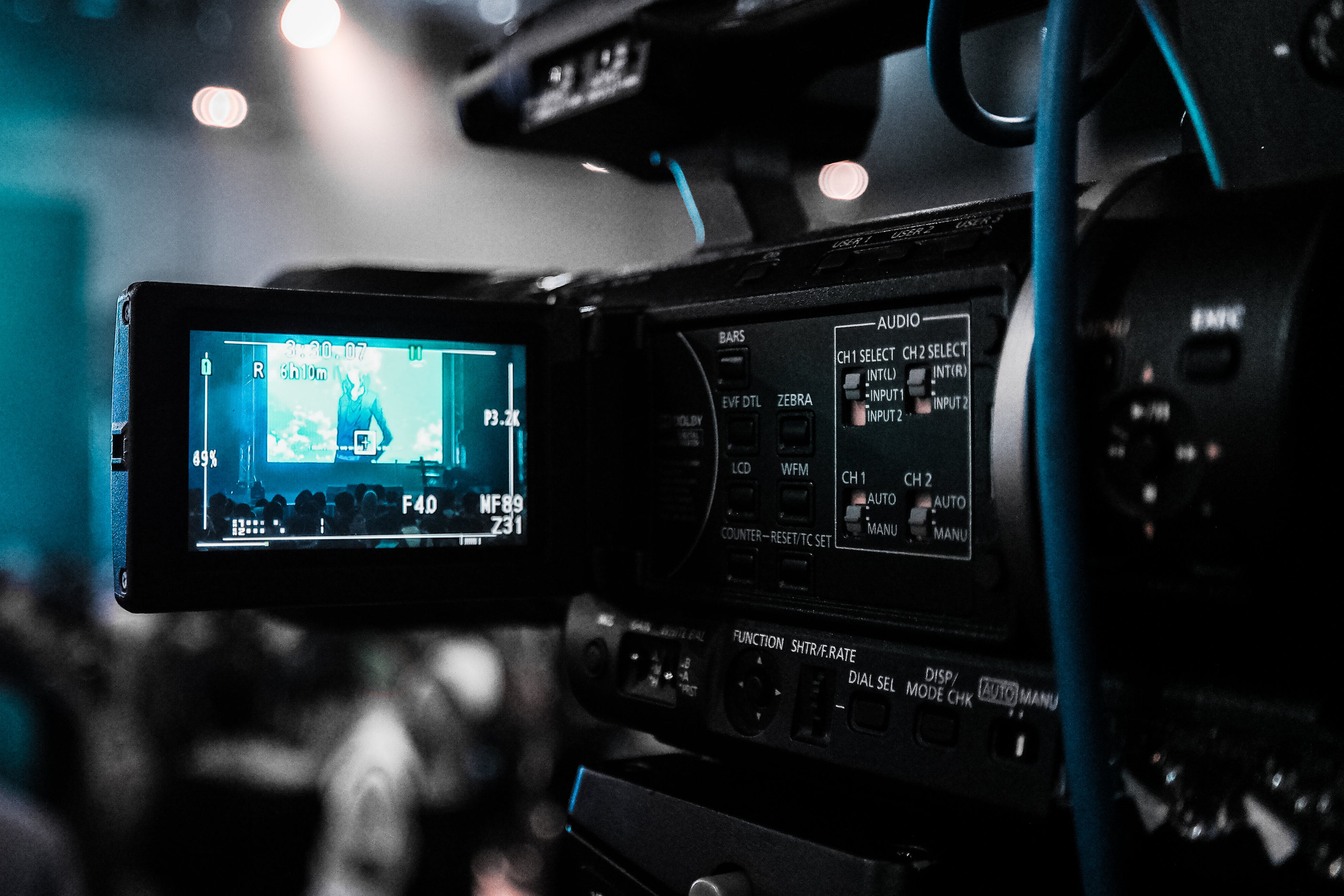
Customization is key to standing out and ensuring your stream reflects your personal brand. Discord offers a variety of settings to tailor your streaming experience. Once you initiate the stream by selecting either your screen or application window, the settings cog becomes your tool for personalization. Click it to access a range of options that allow you to modify stream quality, adjust frame rates, and toggle on streamer mode for added privacy.
Stream Quality and Frame Rate: Discord allows you to choose the resolution and frame rate of your stream. If you're a Discord Nitro subscriber, you can stream at higher resolutions and frame rates. Adjust these settings based on the capability of your hardware and internet speed to maintain a balance between quality and performance.
Streamer Mode: This feature is designed to protect your privacy while broadcasting. It hides sensitive information such as your email, connected accounts, and invite codes. You can enable this mode in Discord's user settings under the 'Streamer Mode' tab.
Additionally, you can play with audio settings to ensure your viewers have the best auditory experience. If you have music or other audio playing in the background, you can adjust the mix so that it doesn't overshadow your voice. Finally, don't forget to make use of Discord's server roles and permissions to control who can view your stream or join you in a live broadcast.
Engaging Your Audience During Discord Streams

Once your stream is live on Discord, engaging your audience becomes paramount. Interaction is the lifeblood of any successful stream, and there are several strategies you can use to keep your viewers hooked. First and foremost, communication is critical. Use your voice or chat to respond to viewers' comments and questions. This direct engagement makes your audience feel valued and more likely to stick around.
Another strategy is to incorporate interactive elements into your stream. Polls, Q&A sessions, and games can transform passive viewers into active participants. For instance, you might ask viewers to choose what game you play next or what topic to discuss. These activities not only keep your audience entertained but also give them a sense of influence over the stream content.
Discord's unique features, such as custom emojis and roles, can also be used to enhance viewer interaction. Emojis add a fun visual element to the chat, while roles can be assigned to regular viewers or subscribers, giving them a sense of belonging and recognition within your community.
Remember, the key to maintaining engagement is consistency. Keep a regular streaming schedule, and your audience will know when to tune in. By combining these tactics with the interactive features of Discord, you can create a dynamic and engaging streaming experience that will keep your audience coming back for more.
Troubleshooting Common Discord Streaming Issues

Even with a meticulous setup, you may encounter hiccups while streaming on Discord. Knowing how to troubleshoot common issues can save your stream from stalling. A frequent problem streamers face is audio glitches or the absence of sound. This can often be remedied by checking your audio input settings on Discord and ensuring your microphone is selected as the primary device.
Video lag or poor quality is another issue that can detract from your stream's professionalism. This can often be attributed to inadequate internet bandwidth or incorrect Discord video settings. Ensure that your internet connection is stable and that you've optimized Discord's video settings for your particular streaming scenario.
When it comes to connectivity problems, such as being unable to go live, this could be due to server overload or temporary outages. In such cases, patience is key: wait for a few minutes and try again. Additionally, keeping your Discord application up to date is crucial as updates often contain bug fixes and performance improvements.
If your viewers are experiencing difficulties, such as not being able to see your stream, instruct them to refresh their connection or restart Discord. It's also helpful to have a set of written troubleshooting tips readily available for your audience to refer to, ensuring they spend less time dealing with issues and more time enjoying your content.
Leveraging Discord Streaming for Community Building
Streaming on Discord isn't just about sharing content; it's a powerful tool for community building. Engaging with your audience in real-time creates a sense of belonging and fosters a supportive network. Start by scheduling regular streaming sessions to establish a routine that your community can look forward to. During your streams, encourage viewer interaction through Q&A sessions, polls, or by addressing viewers by name to create a personal connection.
Another effective strategy is to create exclusive content for your Discord community. This could be behind-the-scenes footage, tutorials, or discussions about upcoming projects. Such exclusivity makes your community members feel valued and can lead to increased loyalty and engagement. Don't forget to promote your streaming sessions on other social media platforms to draw in new members and grow your community further.
Collaborating with other streamers or inviting guests can also add value to your streams, providing diverse content and cross-promotion opportunities. This not only enriches the experience for your current community but can attract new members from other communities as well.
To get started on your journey of community building through streaming on Discord, visit our website to learn more and get started today! Click here. With the right approach, Discord can be the cornerstone of a thriving and interactive community, centered around your streaming content.