Ultimate Guide: How to Show Streaming in Discord!
Discover the ultimate guide on how to show streaming in Discord. Learn simple steps for setting up and sharing live content with your Discord community.
Welcome to the world of Discord streaming, where gamers, artists, and content creators come together to share their live experiences. Discord, primarily known for its robust communication features, has steadily evolved into a platform where users can showcase their live gameplay, art sessions, and even host watch parties. If you're intrigued by the prospect of sharing your own live content, you're in the right place to learn how to show streaming in Discord.
Streaming on Discord is a fantastic way to connect with your community, friends, or followers in real-time. Whether you're looking to broadcast your latest gaming session or share a live tutorial, Discord's streaming features are designed to be user-friendly and accessible. Before diving into the technicalities, it's essential to understand that Discord streaming does not require any external software, although you can integrate with popular streaming tools for an enhanced experience.
As you embark on this journey of sharing your digital experiences, remember that a successful stream on Discord is just a few clicks away. Visit our website to learn more and get started today! Click here.
In the following sections, we'll guide you through the simple steps required to set up your stream and engage with your audience effectively. Let's get your stream up and running and make sure your Discord server is the place to be!
Setting Up Your Streaming Equipment
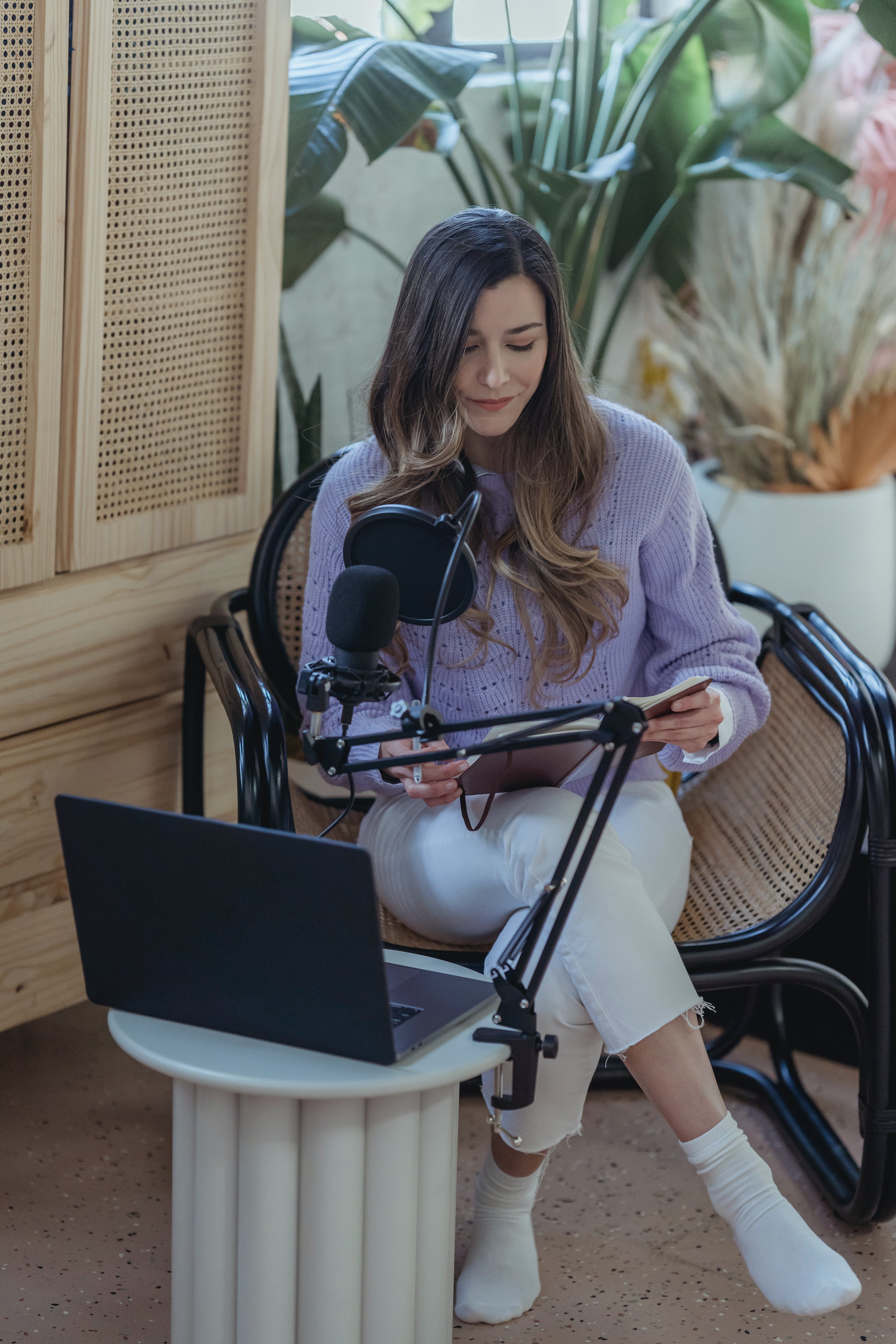
Before you can showcase your live content on Discord, it's crucial to have the right equipment in place. A seamless streaming experience starts with a stable and fast internet connection to prevent latency or disconnection issues. Next, you'll need a decent quality microphone and webcam if you're planning to add a personal touch with your face and voice. Clear audio and video quality can significantly enhance viewer engagement and keep your audience coming back for more.
For gamers, a capable gaming rig that can handle both the game and streaming software is a must. Additionally, consider investing in a good pair of headphones to ensure you can interact with your viewers without any audio interference. Lighting also plays a key role, especially if you're using a webcam. Soft, diffused lighting can greatly improve your on-screen presence.
Once your hardware is ready, you'll want to familiarize yourself with Discord's 'Go Live' feature, which allows you to share your screen with up to 50 people directly in a server voice channel. Take a moment to explore your Discord settings, where you can adjust the stream quality and frame rate according to your Discord Nitro subscription level and equipment capabilities. Remember, even with the most basic setup, it's your content that will truly captivate your audience.
With your streaming equipment set up, you're now poised to take the next step: configuring Discord's streaming settings to ensure a smooth and enjoyable broadcast for both you and your viewers.
Configuring Discord for Live Streaming

Transitioning from the hardware setup to software configuration, configuring Discord for live streaming is a straightforward process, but it requires attention to detail to optimize your viewers' experience. To begin, open Discord and ensure you're connected to the server where you want to stream. Navigate to 'User Settings,' denoted by a gear icon near your username, and select the 'Voice & Video' tab. Here, you'll tailor your audio and video settings, choosing the correct input and output devices.
For audio configuration, you can perform a 'Mic Test' to confirm your microphone's quality and adjust input sensitivity. Discord also offers noise suppression features that can be enabled to minimize background noise. As for video, make sure your webcam is selected and preview your feed to ensure everything is visually acceptable. Don't forget to explore 'Advanced' settings for additional tweaks like echo cancellation and noise reduction.
Next, familiarize yourself with the 'Game Activity' section, which allows Discord to recognize the game you're playing. This step is essential for the 'Go Live' feature to function correctly. Once your game is added, you can launch it, and a 'Stream' button will appear next to the game in your status panel.
Lastly, decide on your stream's resolution and frame rate. Discord offers different streaming qualities, with higher resolutions and frame rates available to Nitro subscribers. It's crucial to balance quality with your system's capabilities to maintain a stable stream. With these settings fine-tuned, you're almost ready to go live. All that's left is to join a voice channel, click the 'Go Live' button, and select the game or application window you wish to share with your audience.
Engaging Your Audience During Streams

Once your stream is live, the real challenge begins: engaging your audience. Interaction is key to retaining viewers and creating a memorable experience. Start by greeting newcomers to your stream and acknowledging your regulars. This personal touch can make your audience feel valued and more likely to stay engaged.
Another effective strategy is to encourage viewer participation. Ask questions, solicit feedback, or run polls to get your viewers more involved in the content. Interactive elements keep the stream dynamic and give your audience a sense of agency. For instance, if you're playing a game, let viewers suggest strategies or make decisions that affect the gameplay.
Don't overlook the importance of monitoring your chat. Responding to messages and comments in real time can be challenging, but it's essential for fostering a sense of community. If managing chat while streaming becomes overwhelming, consider enlisting a moderator to help keep the conversation flowing and handle any issues that arise.
Remember to express your gratitude for your audience's presence and support. Acknowledge subscriptions, donations, and bits if you're streaming on a platform that features such interactions. Personal shout-outs can enhance the viewer's experience, making them feel like an integral part of your stream.
Lastly, maintain a consistent streaming schedule. Regularity helps build anticipation and allows your audience to plan their time around your streams. Use social media to remind your followers of upcoming streams and any special events or themes you're planning. By keeping your audience informed and excited about what's to come, you'll be more likely to see them return for your next live session.
Troubleshooting Common Streaming Issues
Even with meticulous setup, technical hiccups can arise when showing streaming in Discord. Common issues include audio glitches, video lag, or streams failing to start. One of the first steps to troubleshoot is to check your internet connection. A stable and fast connection is crucial for streaming, so consider using a wired connection over Wi-Fi for improved stability.
Audio problems can often be resolved by ensuring your microphone is selected as the default recording device in your system settings and Discord. If your stream is silent, also check individual application settings and the volume mixer to make sure audio is being routed correctly.
Video lag is another frequent issue that can detract from your stream's quality. This can be addressed by lowering your stream's resolution or frame rate in Discord's stream settings, which can reduce the strain on your system and improve fluidity. Additionally, closing unnecessary applications will help free up your computer's resources.
If your stream won't start at all, ensure that you have the necessary permissions within the Discord server and that the application you're trying to stream is recognized by Discord. Sometimes, running Discord as an administrator can resolve permission-related issues.
When specific applications refuse to stream, adding them manually to Discord's game activity settings can help. For persistent problems, don't hesitate to consult Discord's support resources or the community forums. Often, other users have encountered similar issues and can offer solutions that have worked for them.
Maintaining updated drivers for your graphics card and sound card, as well as ensuring that Discord is running the latest version, can prevent many common streaming issues. By proactively managing these elements, you can minimize disruptions and deliver a smoother streaming experience to your audience.
Leveraging Discord's Streaming Features for Growth

Discord is not only a platform for gamers; it's a burgeoning community space where creators can grow their audience and engage with fans in real-time. Utilizing Discord's streaming features effectively can be a game-changer for content creators looking to expand their reach. Engagement is key, and live streaming on Discord offers an intimate venue for direct interaction with your community. Q&A sessions, live tutorials, or showcasing new content can significantly increase viewer retention and loyalty.
Collaborations are another avenue for growth within Discord. Hosting joint streams with other creators can expose you to new audiences and vice versa. Networking within the platform can lead to fruitful partnerships and cross-promotional opportunities that might not be available elsewhere.
Furthermore, Discord allows for a personalized streaming experience. Custom emotes, roles, and channels tailored to your brand create a unique environment that can entice new members to join your server. Exclusive streams or content for subscribers or Patreon supporters can also incentivize viewers to engage on a deeper level.
To truly leverage these features, consistency is crucial. Regular streaming schedules help establish a routine that viewers can look forward to, fostering a sense of community and expectation. Remember to promote your Discord streams on other social platforms to draw in a wider audience.
If you're interested in taking your content to the next level with Discord's streaming capabilities, Visit our website to learn more and get started today! Click here. With the right strategies, you can transform your Discord server into a vibrant hub for your brand and a cornerstone of your online presence.